


Posted by: Sotiris Filippidis
26 June 2026


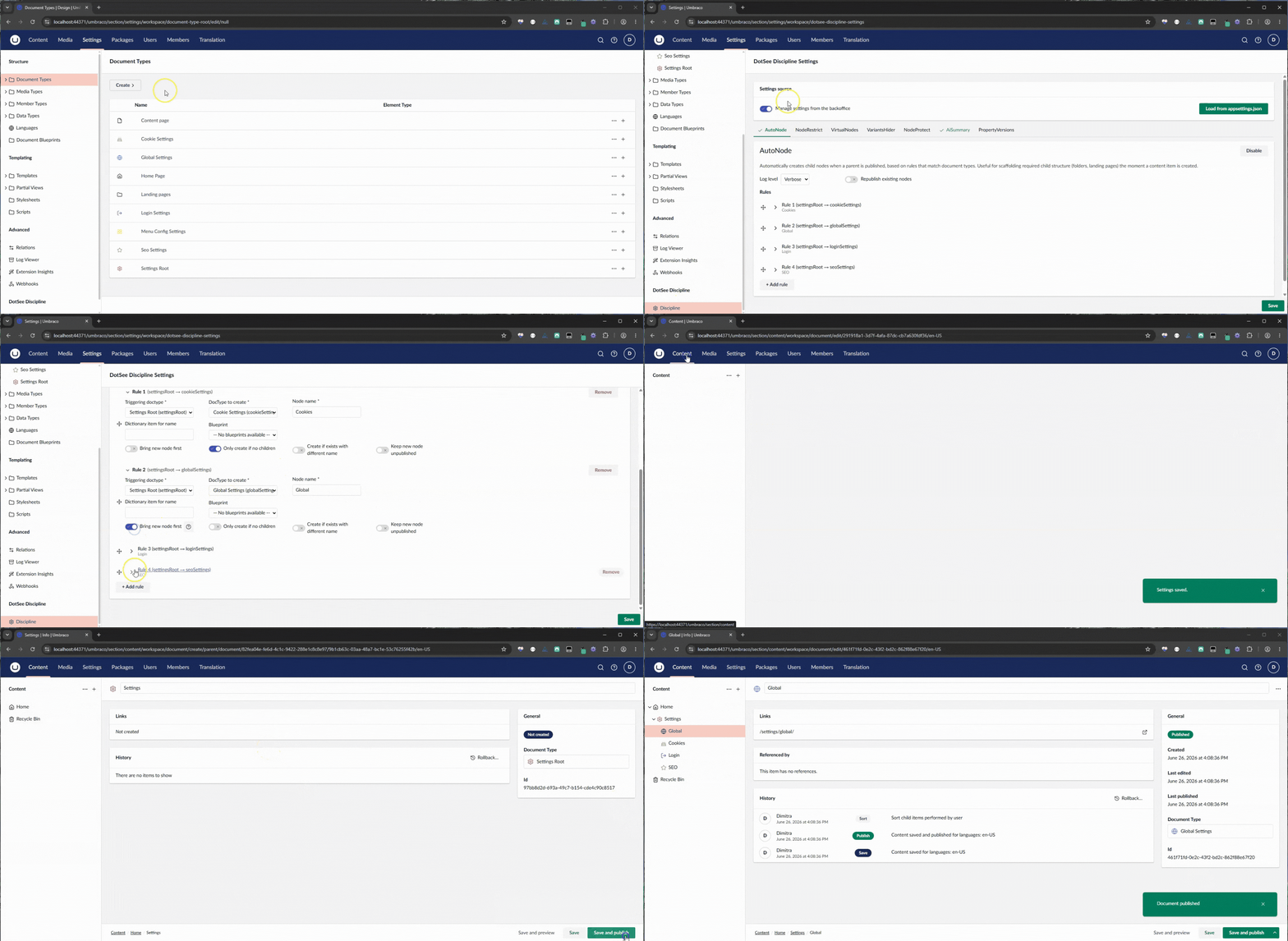
Great news for those of you that are already using the Discipline package: You can now set up everything via the Umbraco Back Office UI, with changes immediately taking effect.
Not only that, but every property alias field, every document type alias field, even AI model names, are all now dropdowns in the UI, keeping you safe from typos or specifying things that cannot be used.
For those of you that haven't used it so far: Discipline is a content governance package for Umbraco that helps enforce structure, consistency, and editorial control inside the back office.
Discipline's current features are as follows:
- Automatically creating new child nodes when a node is published
- Restricting creation of new nodes in the Umbraco back office
- Hiding URL segments from Umbraco generated URLs
- Protecting nodes from deletion
- Hiding not created variant nodes in the back office
- Creating AI-based summaries for content nodes in the backoffice
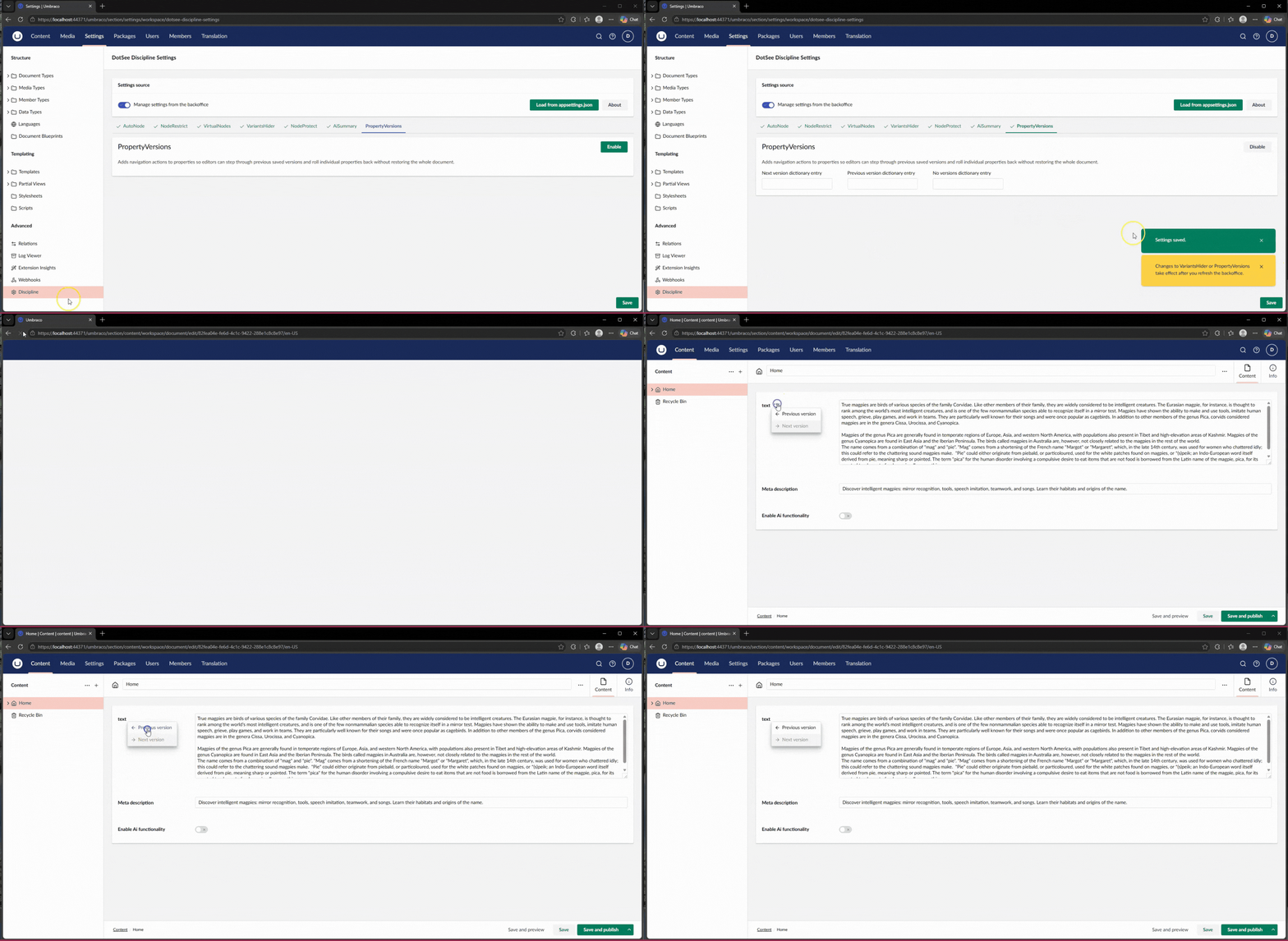
- Enabling property version tracking for text and rich text properties in the backoffice
Automatically creating new child nodes when a node is published
This functionality, also known as AutoNode, helps you automatically create new nodes when a node is published, based on rules you define.
You can set up rules to decide when new nodes should be created, which document types should be included, what names the new nodes should use, and where they should be placed in the Umbraco backoffice.
You can define rules that determine the document types to be included, node names to be added (either statically or from dictionary entries), and even control the placement of the new node within the Umbraco back-end.
Additionally, you can choose to republish a node if it already exists and to create nodes automatically only if no other child nodes exist.
Node names can be fixed, or they can come from dictionary entries, giving you more flexibility for multilingual or structured setups.
You can also choose whether an existing node should be republished, and whether automatic node creation should only happen when the published node has no existing child nodes.
Overall, it helps reduce repetitive manual work and makes content structure creation more consistent.
Restricting creation of new nodes in the Umbraco back office
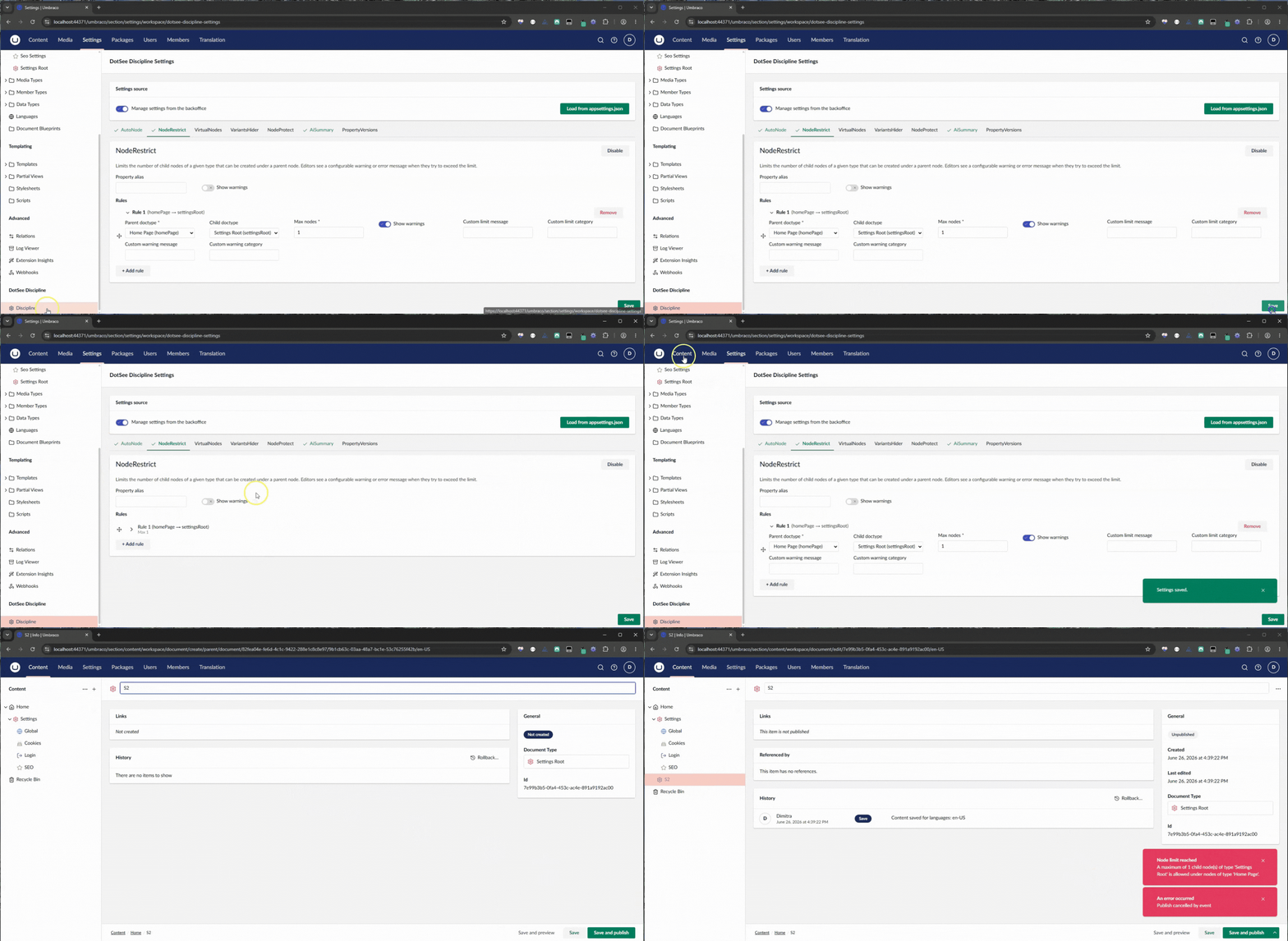
This functionality, also known as NodeRestrict, lets you control how many published child nodes are allowed under a specific node.
You can define these limits in two ways: through rules (appSettings.json or the back office UI), where you specify the parent and child document types, or through a special property on an individual node, which limits the number of child nodes it can have, regardless of document type.
Both methods can be used together, giving you flexibility depending on how specific or general you want each restriction to be.
When the maximum number of allowed nodes is reached, any new nodes can still be saved, but they will not be published. The user will then see a message explaining the restriction, either using the standard message or a custom one you define.
You can also choose to show warning messages in the backoffice before the limit is reached, so users know how many child nodes they can still publish.
Hiding URL segments from Umbraco generated URLs
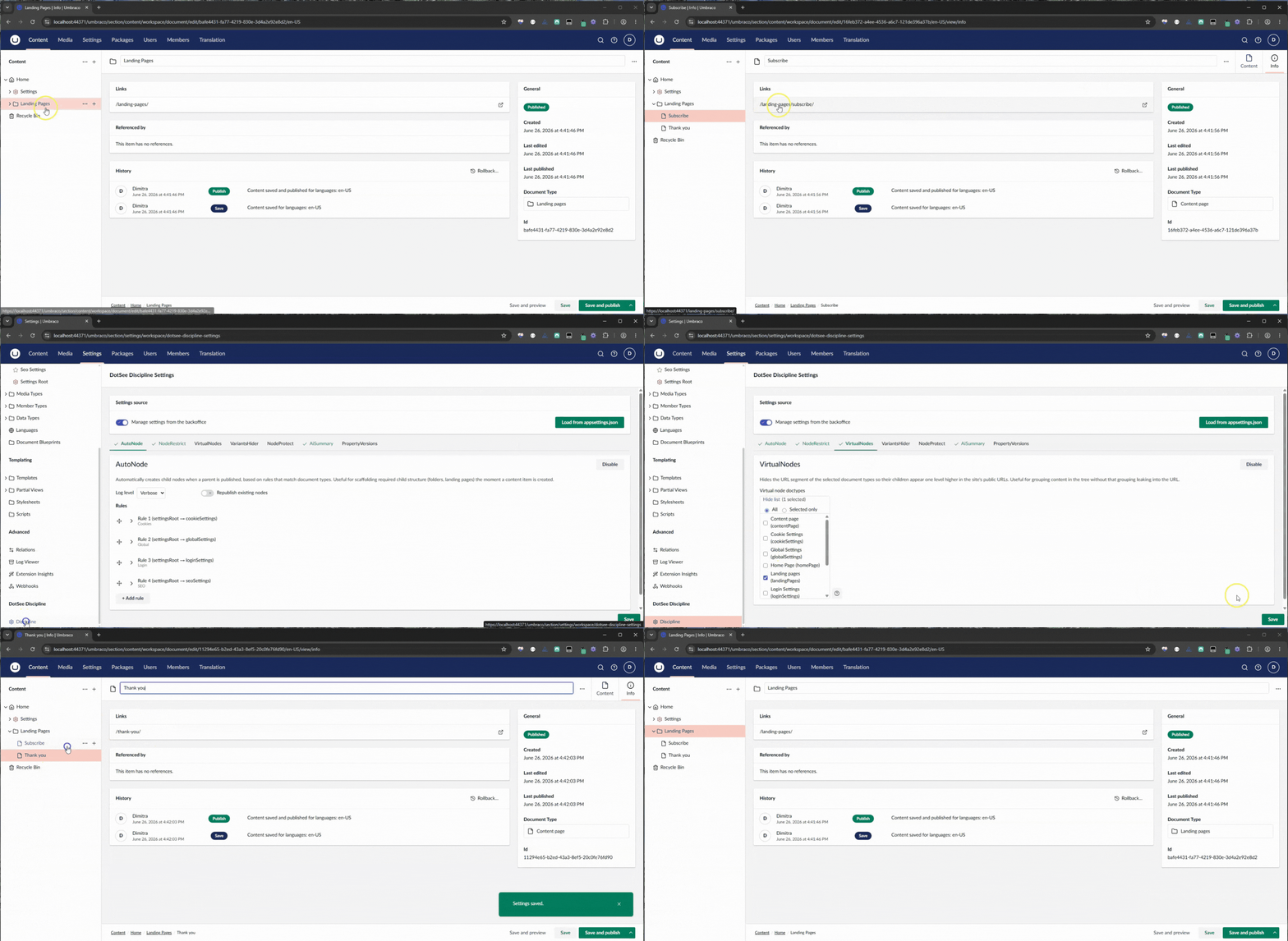
This functionality (also known as VirtualNodes) lets you choose one or more document types that should be excluded from Umbraco-generated URLs.
These document types can then be used as grouping nodes in the content tree without appearing in the final URL structure.
For example, you can organize content in the backoffice in a way that makes sense for editors, while keeping the public-facing URLs clean and simple.
Protecting nodes from deletion
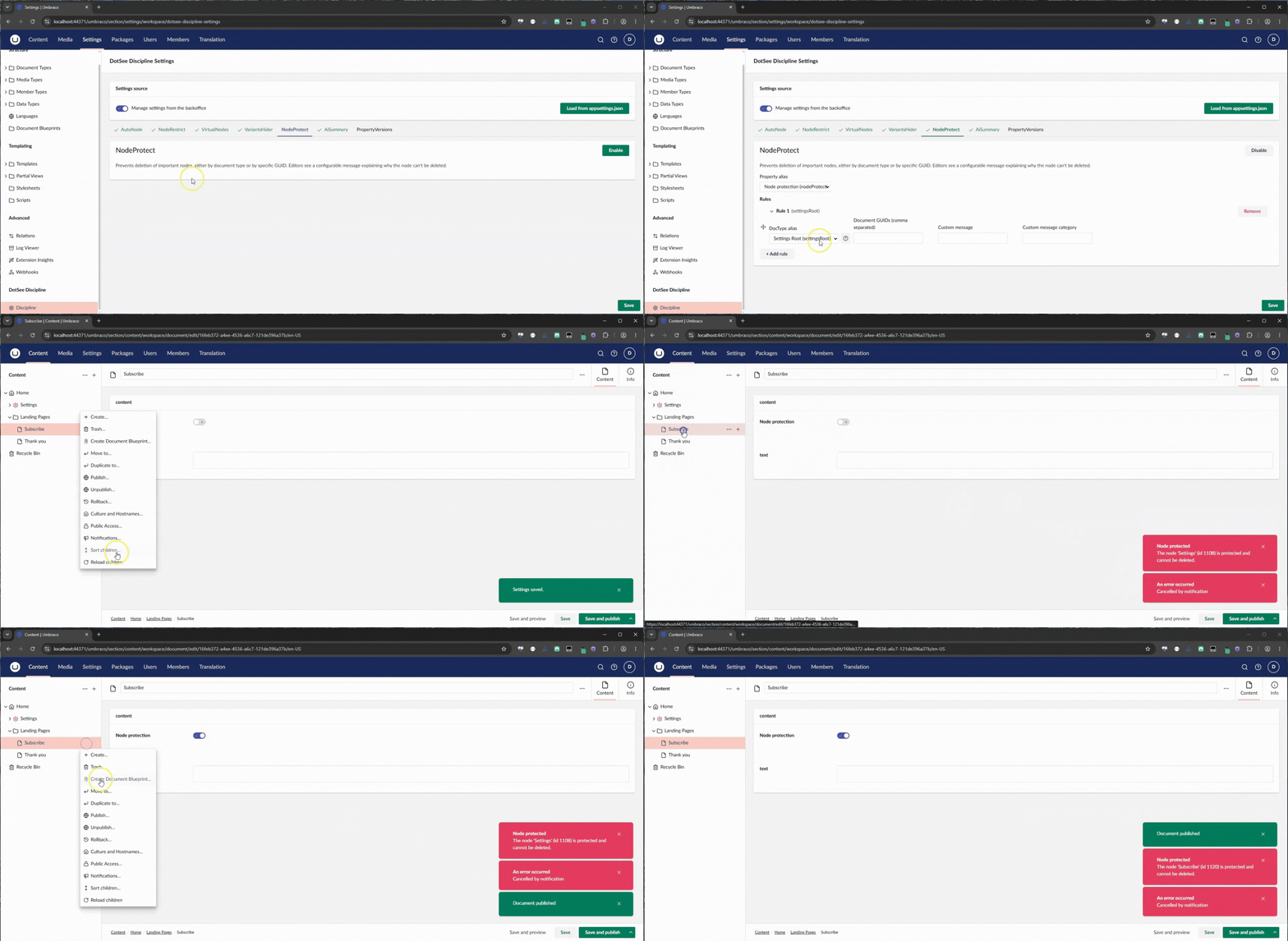
This functionality, also known as NodeProtect, lets you protect important nodes from being deleted by backoffice users (even admins).
For example, you may have a “Settings” node that the website depends on and should never be removed accidentally.
When a user tries to delete a node, the system checks whether that node is protected. If the user is deleting a whole section of the content tree, all nodes inside that section are checked recursively as well. If any protected node is found, the deletion is prevented.
You can define as many protection rules as needed, giving you better control over critical parts of your content structure.
Hiding not created nodes in the back office
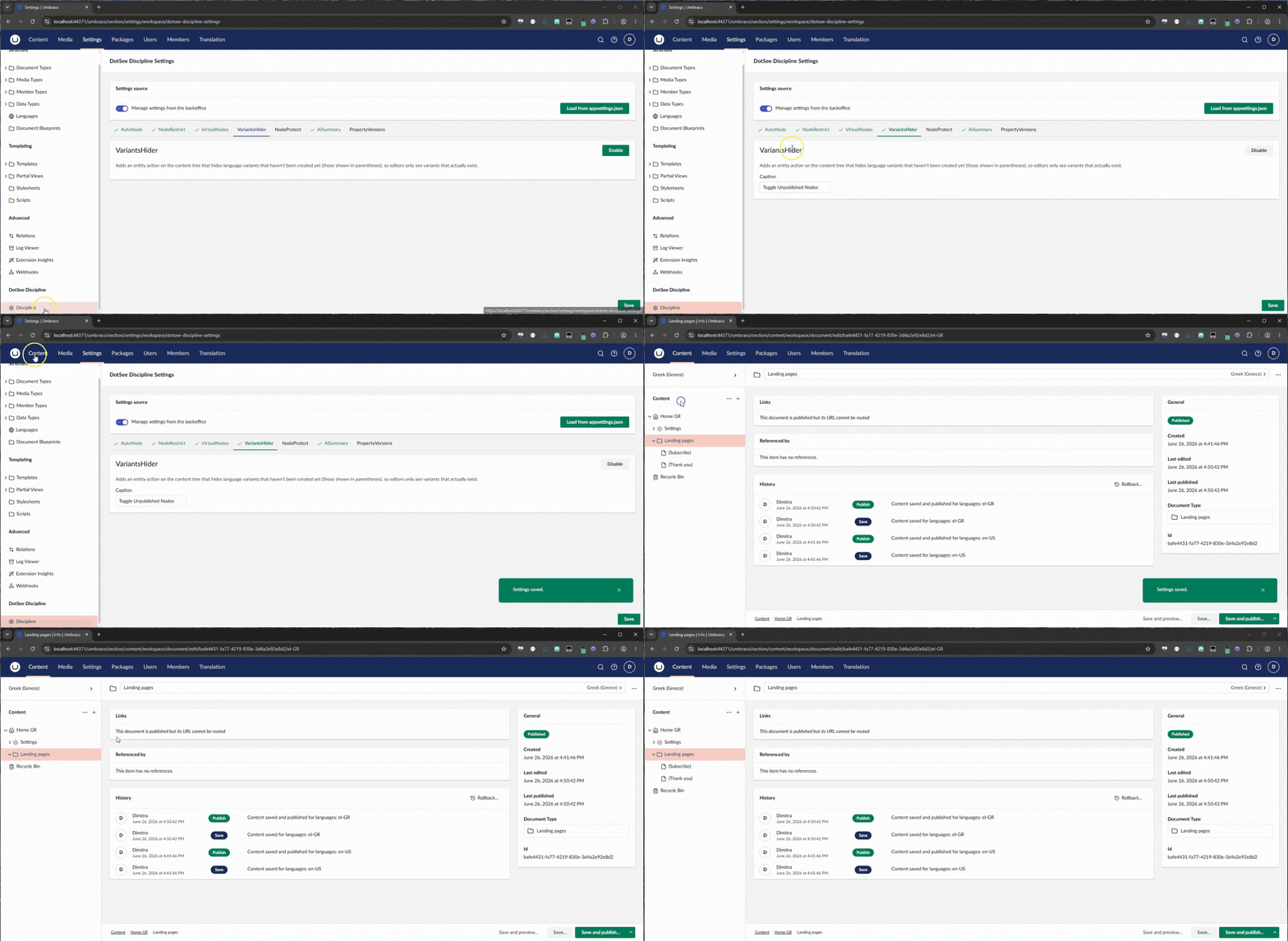
This functionality adds a right-click option to the main “Content” node in the Umbraco backoffice, allowing users to easily toggle whether not-created variants are shown or hidden.
This is especially useful on multilingual websites, where some content may exist in one language but not yet in others. By hiding these not-created variants, the content tree becomes cleaner and easier to work with.
Users can switch the option on or off whenever needed, depending on whether they want a full view of all variants or a more focused, decluttered content tree.
Creating AI-based summaries for content nodes in the backoffice
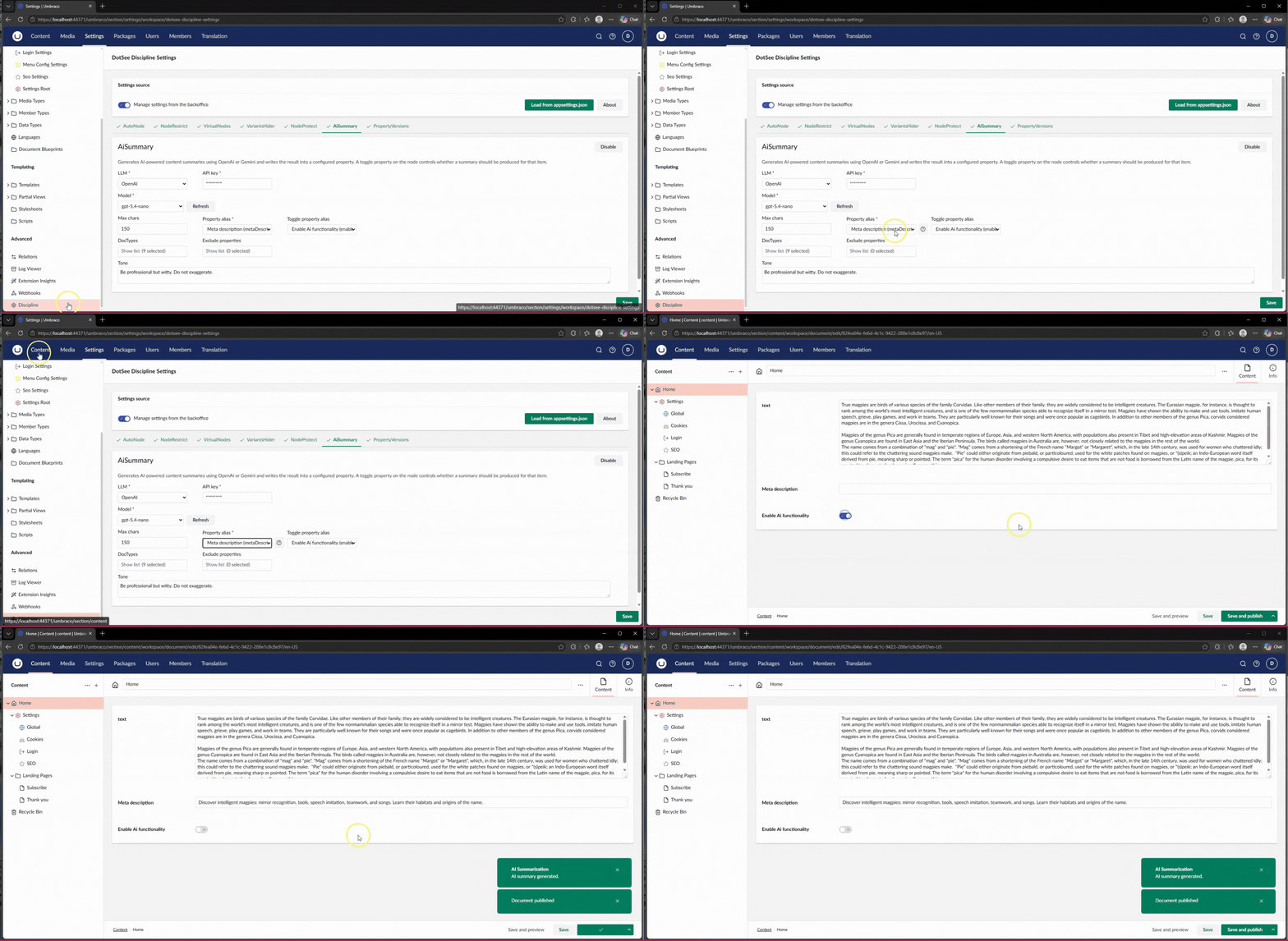
This functionality helps editors generate AI-based, SEO-friendly summaries for content nodes directly from the Umbraco backoffice. It can use either the OpenAI or Gemini API, depending on your configuration.
It works by reading the text content from the node, including standard text properties, rich text editors, and text inside blocks. It then uses the selected AI service to generate a summary based on that content.
You can configure where the generated summary should be saved. This can be a regular document property or a property inside a block.
The functionality can also be limited to specific document types, and you can exclude certain property aliases from the content used to generate the summary when needed.
Summaries can be generated automatically on save for empty summary fields, or you can combine the functionality with a backoffice switch so editors can choose when a summary should be created.
To use this feature, you will need an API key for either OpenAI or Gemini and add it to the configuration.
Enabling property version tracking for text and rich text properties in the backoffice
This functionality helps editors keep track of changes made to text-based properties in Umbraco content nodes.
It works with Rich Text, Textstring, and Textarea properties, and makes their version history available in a dedicated tab in the backoffice. From there, users can review previous values and, when needed, roll back to an earlier version.
Version tracking is available across all document types and also works with properties inside Block List items.
The functionality respects Umbraco’s “Rollback” user permission, so only users who are allowed to perform rollbacks will be able to view the version history and restore previous values.